

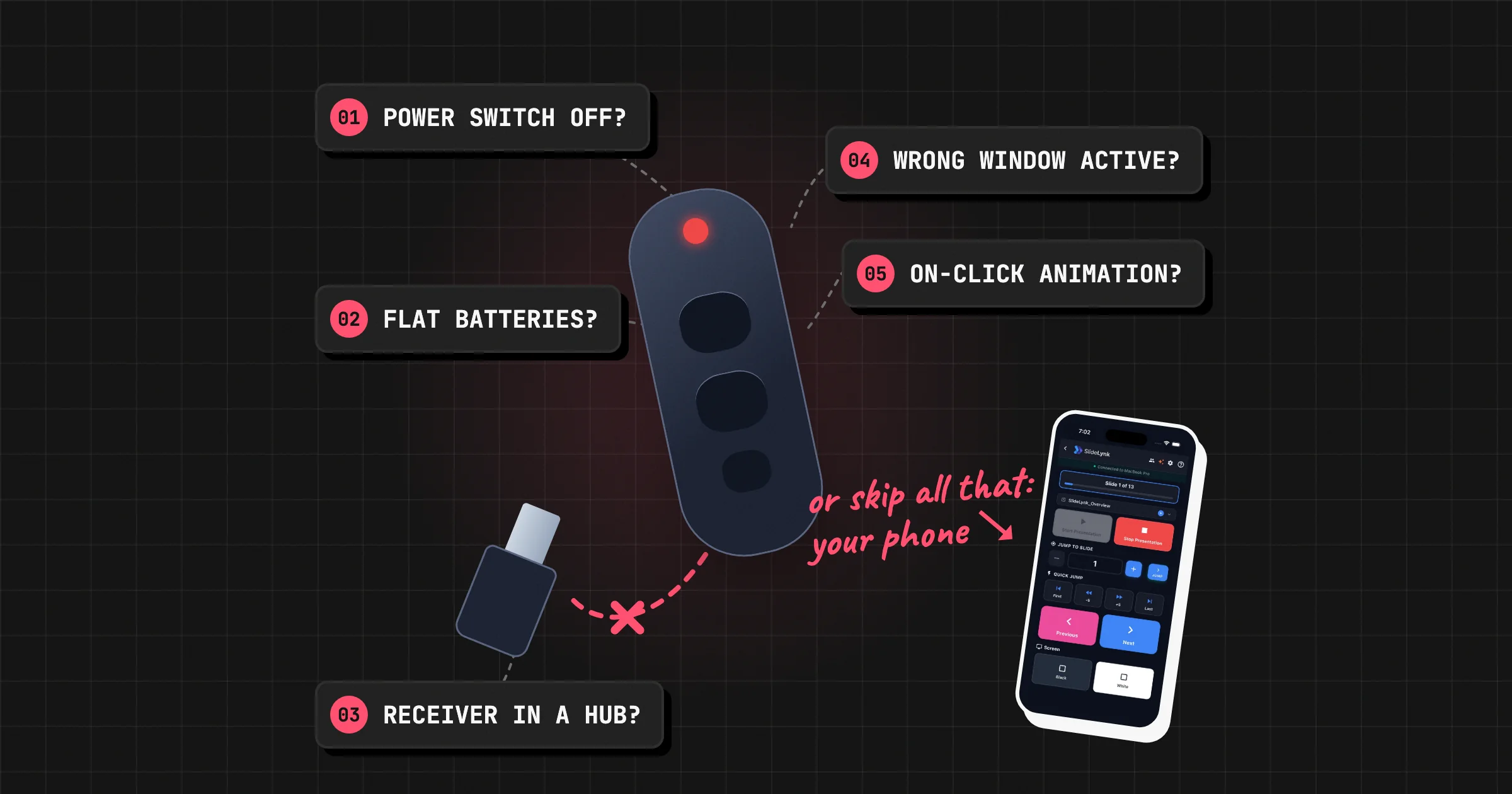
The 60-second fix
You press the button and nothing happens. Before anything else, run through this list. It fixes most clickers in under a minute:
- Click once on the slideshow with your mouse or trackpad. Then try the clicker again.
- Check the clicker's power switch and look for its light when you press a button.
- Unplug the USB receiver and plug it straight into the laptop, not into a hub, dock, or keyboard.
- Put in fresh batteries.
- On a Mac, look for an "Allow accessory to connect?" message and click Allow.
Still stuck? The rest of this guide narrows it down: first, is it the clicker or the computer?
Step 1: Is it the clicker or the computer?
Most clickers pretend to be a tiny keyboard. The receiver tells your laptop "someone pressed Page Down", and your presentation app moves to the next slide.
That gives you an easy test:
- Open a long document or web page (Notes, Word, a browser tab).
- Press the clicker's Next button a few times.
- The page scrolls or the cursor moves: the clicker works. The problem is the presentation app or which window is active. Skip to Step 3 below.
- Nothing happens anywhere: the clicker isn't reaching the laptop. Start with Step 2.
Step 2: Nothing happens anywhere
1) Batteries and the power switch
Many clickers have a small on/off switch on the side or underneath, and it's easy to knock it off in a bag. If the clicker has a light, it should blink when you press a button. No light usually means flat batteries. Keep a spare set with your clicker, not in a drawer at home.
2) Plug the receiver directly into the laptop
USB hubs, docks, monitors with USB ports, and keyboard pass-through ports can all fail to power a small receiver properly. Plug it straight into the laptop. If it still does nothing, try a different port.
3) Check your adapter
Newer laptops, including every recent MacBook, only have USB-C ports, and most clicker receivers are USB-A. A cheap adapter that's only meant for charging won't pass data. Try a different adapter, or one you know works with a mouse or keyboard.
4) Move closer and clear the line of sight
Clickers use a radio signal. Range drops sharply behind a metal lectern, a pillar, a crowd of people, or when the receiver is plugged into the back of a laptop facing away from you. Walk closer to the laptop and try again. If it works up close, it's a range problem, not a broken clicker. A short USB extension cable can lift the receiver above the desk and help a lot.
5) Re-pair the clicker with its receiver
Most clickers come paired to their own receiver from the factory. If you swapped receivers between two identical clickers, or bought a replacement receiver, they may not talk to each other. Some models have a connect button. Others need the maker's pairing tool. Check the support page for your model.
6) Unplug, wait, plug back in
It sounds too simple, but unplugging the receiver for 10 seconds and plugging it back in makes the laptop set it up again. This fixes a surprising number of "it worked yesterday" cases.
Step 3: It works, but the slides don't move
If your clicker scrolls a web page but your slides stay put, the clicker is fine. Here's what's usually going on.
7) The slideshow isn't the active window
This is the most common cause by far. The clicker's key presses go to whichever window is active. If you clicked on Zoom, Teams, a browser tab, or a chat notification, that window gets the presses instead of your slides.
Fix: click once anywhere on the running slideshow, then use the clicker. On a video call, click the slideshow again after you share your screen.
8) The slideshow isn't actually running
In PowerPoint's editing view, the clicker may only move the selection in the slide list. In Keynote, it may do nothing at all. Start the slideshow first:
- PowerPoint on Windows: press F5, or Shift + F5 to start from the current slide.
- PowerPoint on Mac: press Cmd + Shift + Return, or use Slide Show > Play from Start.
- Keynote: press Option + Cmd + P, or click Play in the toolbar.
9) An animation is "eating" your clicks
If a slide has animations set to On Click, each press runs the next animation instead of moving to the next slide. On a slide with five bullet points that fly in, it takes six presses to leave the slide. It looks like the clicker is stuck. Count your animations, or change them to After Previous so they play automatically.
10) The "start slideshow" button does nothing on a Mac
The play button on many clickers sends F5, which is PowerPoint's start key on Windows. On a Mac, F5 is often a brightness or keyboard key, and Keynote uses a different shortcut. Start the show yourself, then use the clicker for next and previous. Those buttons send Page Down and Page Up (or the arrow keys), which work in PowerPoint, Keynote and Google Slides.
Extra fixes for Mac
- "Allow accessory to connect?" On Apple silicon Macs, macOS asks before it trusts a new USB device. If you missed the message, unplug the receiver, plug it back in, and click Allow. You can change this in System Settings > Privacy & Security > Allow accessories to connect.
- "Keyboard Setup Assistant" pops up. Your Mac sees the receiver as a keyboard and wants to identify it. You can safely close the window. The clicker still works.
- Use a real data adapter for USB-C, as above.
Extra fixes for Windows laptops
- USB power saving. Windows can switch off USB ports to save power, and a sleepy receiver may miss your first few presses. Open Device Manager, expand Universal Serial Bus controllers, open each USB Root Hub, and on the Power Management tab untick Allow the computer to turn off this device to save power.
- Check that Windows sees it. In Device Manager, the receiver should appear under Keyboards or Human Interface Devices when plugged in. If it shows a warning icon, right-click it, choose Uninstall device, then unplug and replug the receiver.
- Work laptops may block USB devices. Some company laptops only allow approved USB devices. If the clicker works on your personal laptop but not your work one, ask your IT team, or use a backup that doesn't need a USB port (see below).
11) The laser pointer doesn't show up
Searching for "presentation pointer not working"? Two very different things can be going on:
- A red laser is invisible on many screens. Red lasers show on projector screens, but barely at all on TVs, LED walls and monitors, because those screens give off light rather than reflect it. Your laser works. The screen just won't show it. A green laser is a little easier to see, but a digital pointer that draws on the slide itself is the reliable fix.
- Digital pointers need their app running. Clickers with an on-screen spotlight or highlight (Logitech Spotlight, for example) rely on the maker's app on the laptop. If the app isn't running, or isn't allowed to draw on screen, the pointer does nothing even though Next and Previous still work.
12) Black screen button does the wrong thing
Most clickers' black screen button sends B (or .). PowerPoint, Keynote and Google Slides all black out the screen with B. If the button sends a different key, or you're on a video call, press B on the keyboard instead, and press it again to bring the slide back.
The backup that's already in your pocket
Every fix above assumes you have the clicker, its receiver, working batteries and a free USB port. The most common clicker problem is simpler than any of that: you left it at home, or the tiny USB receiver is still plugged into another laptop.
That's why many presenters keep a second remote on their phone. With SlideLynk, your iPhone or Android phone controls PowerPoint and Keynote on Mac and Windows:
- Nothing to forget. No receiver, no batteries, no USB port. Your phone is already in your pocket.
- Free for next and previous. The free plan covers next, previous, start and stop.
- Works without internet. Connect over the venue Wi-Fi or your phone's hotspot. Your slides never leave the room.
- More than a clicker. Pro adds jump to any slide, black screen, and control from your Apple Watch or Android watch. Premium adds your speaker notes, the next slide and a timer on your phone.
Set it up before your talk
- Install SlideLynk Desktop on the computer running the slides.
- Install the SlideLynk app on your phone.
- Scan the QR code on the computer with the app, open your deck, and tap Start.
It takes a couple of minutes, so do it the day before, not at the lectern. Then if the clicker fails, you just take out your phone.
A 2-minute pre-talk clicker check
Do this when you arrive, not when you're introduced:
- Fresh batteries in the clicker, spare set in the bag
- Receiver plugged straight into the presenting laptop
- Mac: accessory allowed. Windows: receiver shows in Device Manager
- Start the slideshow and click through three slides from where you'll stand
- Try the black screen button, and the laser on the actual screen
- Phone backup connected, just in case
FAQ
Why is my presentation clicker not working on my laptop? Usually because the slideshow isn't the active window, the receiver is plugged into a hub or a data-less adapter, or the batteries are flat. Click once on the slideshow, plug the receiver straight into the laptop, and try fresh batteries.
Why is my presentation clicker not working on my Mac? Check for the "Allow accessory to connect?" message and click Allow, make sure your USB-C adapter carries data, and start the slideshow yourself, because the clicker's start button often does nothing on a Mac.
Why does my clicker work in other apps but not PowerPoint? PowerPoint isn't the active window, the slideshow isn't running, or an On Click animation is using up your presses. Click on the slideshow and count the animations on that slide.
Why is my Logitech clicker not working? Go through the same steps: power switch, batteries, receiver plugged directly into the laptop, and the slideshow as the active window. Logitech receivers come paired to their own clicker, so a receiver from another clicker won't work. Spotlight's on-screen pointer also needs Logitech's app running on the laptop.
Can I use my phone as a presentation clicker? Yes. An app like SlideLynk turns your iPhone or Android phone into a remote for PowerPoint and Keynote. Next and previous are free, and it doesn't need a USB receiver or batteries.
Does a presentation clicker need internet or Wi-Fi? No. A clicker talks to its own USB receiver. A phone remote like SlideLynk needs your phone and computer on the same network, which can be your phone's hotspot. It doesn't need internet.
The bottom line
Most "broken" clickers aren't broken. The slideshow lost focus, the receiver is in a hub, or the batteries gave up. Run the 60-second fix, and keep a backup that can't be left behind.
Download SlideLynk and set up your phone as a backup clicker before your next talk.