

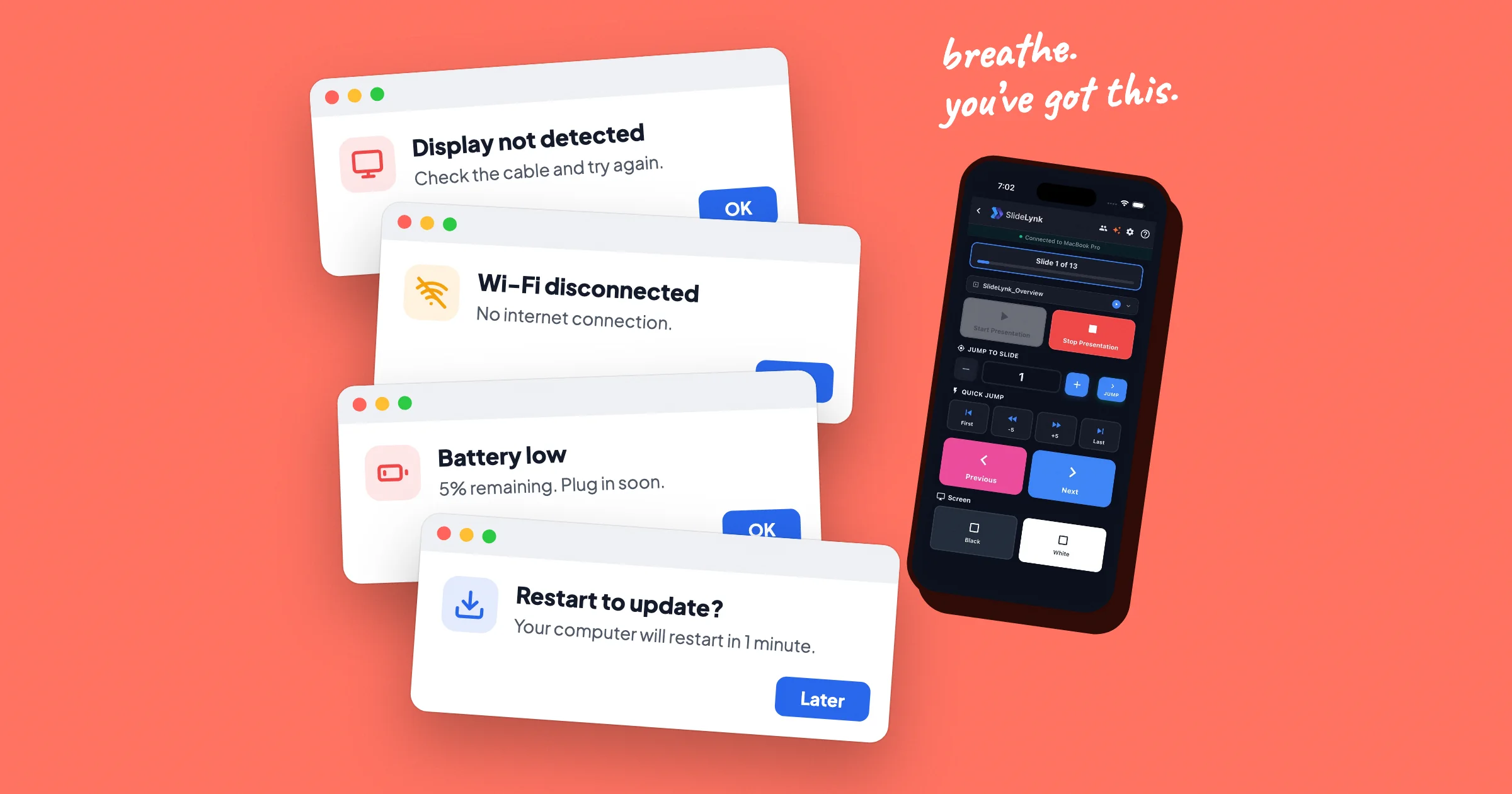
Five minutes before your talk, everything goes wrong
You're up in five minutes. You reach into your bag and:
- the clicker is still at home
- the spare one in the drawer has no USB receiver
- your speaker notes are on the laptop, which sits behind you
- the venue Wi‑Fi just dropped
If you searched for what to do when technology fails during a presentation, this is that moment. The good news is that you don't need perfect tech. You need a plan you can run calmly, and most of that plan is already in your pocket.
This guide covers what to do in the moment, how to prevent the common failures, and a setup that removes several of them entirely.
Why tech failures feel worse than they are
When something breaks, the room doesn't judge the technology. It watches your reaction:
- long silence
- frustration or blame
- nervous laughter
- turning your back to fiddle with the laptop
Audiences forgive a broken projector in seconds. What they remember is the awkward minute afterwards. Confidence isn't about never having problems; it's about having a next step ready.
The most common presentation tech failures
1) The clicker is missing
The most common clicker problem isn't a dead battery. You forgot the clicker, or you have the clicker but its USB receiver (the dongle) is still plugged into your other laptop. Dead batteries and limited range come after that.
2) Your notes are stuck on the laptop
Presenter View works when the laptop faces you. In many rooms the laptop sits at a lectern, a sound desk or a table behind you. That leaves you either memorising or turning around.
3) The Wi‑Fi drops, or never works
Venue Wi‑Fi often "exists" without being usable: captive portals, blocked devices, overloaded networks.
4) The screen goes blank
Usually it's the HDMI cable, the projector input, display mirroring or a sleep setting.
5) Notifications pop up on the big screen
It isn't a failure, but it breaks the room's focus instantly.
What to do in the moment: the calm recovery plan
Step 1: say one calm sentence
"Give me ten seconds and we'll carry on."
One sentence tells the audience you're in control. Silence tells them you aren't.
Step 2: keep talking while you fix it
If your next point doesn't need the slide, deliver it. Silence feels three times longer from the front of the room.
Step 3: fall back to the keyboard
If the clicker fails, the arrow keys and spacebar always work. Stand near the laptop for a minute rather than stopping the talk.
Step 4: switch to your phone
Your phone is charged, it's already in your pocket, and it needs no receiver. A phone remote app can take over slide control in under a minute (more on this below).
Step 5: reset with a recap line
"Quick recap: we covered X, and now we're moving to Y."
This brings the audience back to where you are.
Prevention: the 10-minute pre-talk checklist
Do this before the audience arrives:
- open the deck locally, not from a browser or a cloud link
- connect to the projector and confirm the correct input
- turn on Do Not Disturb / Focus on the laptop and the phone
- connect your remote and test next and previous once
- walk to the farthest point you'll stand and test again
- export a backup PDF to a USB stick or your phone
- know your keyboard shortcuts (arrows, B for a black screen in PowerPoint)
This checklist is boring, and that's the point.
The backup that's already in your pocket
Look back at the five-minute scenario. One device covers all four problems:
- Forgot the clicker or the dongle? Your phone becomes the remote. There's nothing to plug in.
- Notes stuck on the laptop? Your speaker notes, the current slide and the next slide can sit in your hand.
- Venue Wi‑Fi down? Turn on your phone's hotspot and join the laptop to it. Slide control runs on the local connection between the two devices, so it doesn't need the internet.
- Need to move around? You're not tied to the clicker's range or a spot near the laptop.
SlideLynk works this way with PowerPoint (Windows and Mac) and Keynote (Mac). Basic slide control is free. Speaker notes on your phone are part of Presenter View, which is a Premium feature with a 14-day free trial.
Step by step: a setup that survives the venue
- Open your deck in PowerPoint (or Keynote on a Mac).
- Open the SlideLynk desktop app.
- Put your phone and laptop on the same network:
- the venue Wi‑Fi if it's stable, or
- your phone's hotspot if it isn't
- Scan the QR code from the SlideLynk app on your phone.
- Test next and previous from the back of the room.
- For high-stakes talks, connect a second phone as a backup controller.
Do this once at home before the day so it's familiar when it counts.
Habits that make any failure smaller
1) Practise your opening until it's automatic
If the tech fails in the first minute, you can still start strong.
2) Use pauses on purpose
A deliberate pause looks confident. Rushing looks like panic.
3) Keep slides simple
Embedded videos, live links and heavy animation are the slides most likely to break.
Conclusion: plan the recovery, not perfect tech
Technology fails during presentations all the time. The presenters who look unshakeable aren't luckier. They have a recovery plan, a checklist they actually use, and a backup in their pocket.
If you want that backup to be your phone, with slide control and your notes in your hand, download SlideLynk and try it before your next talk.