

The short answer
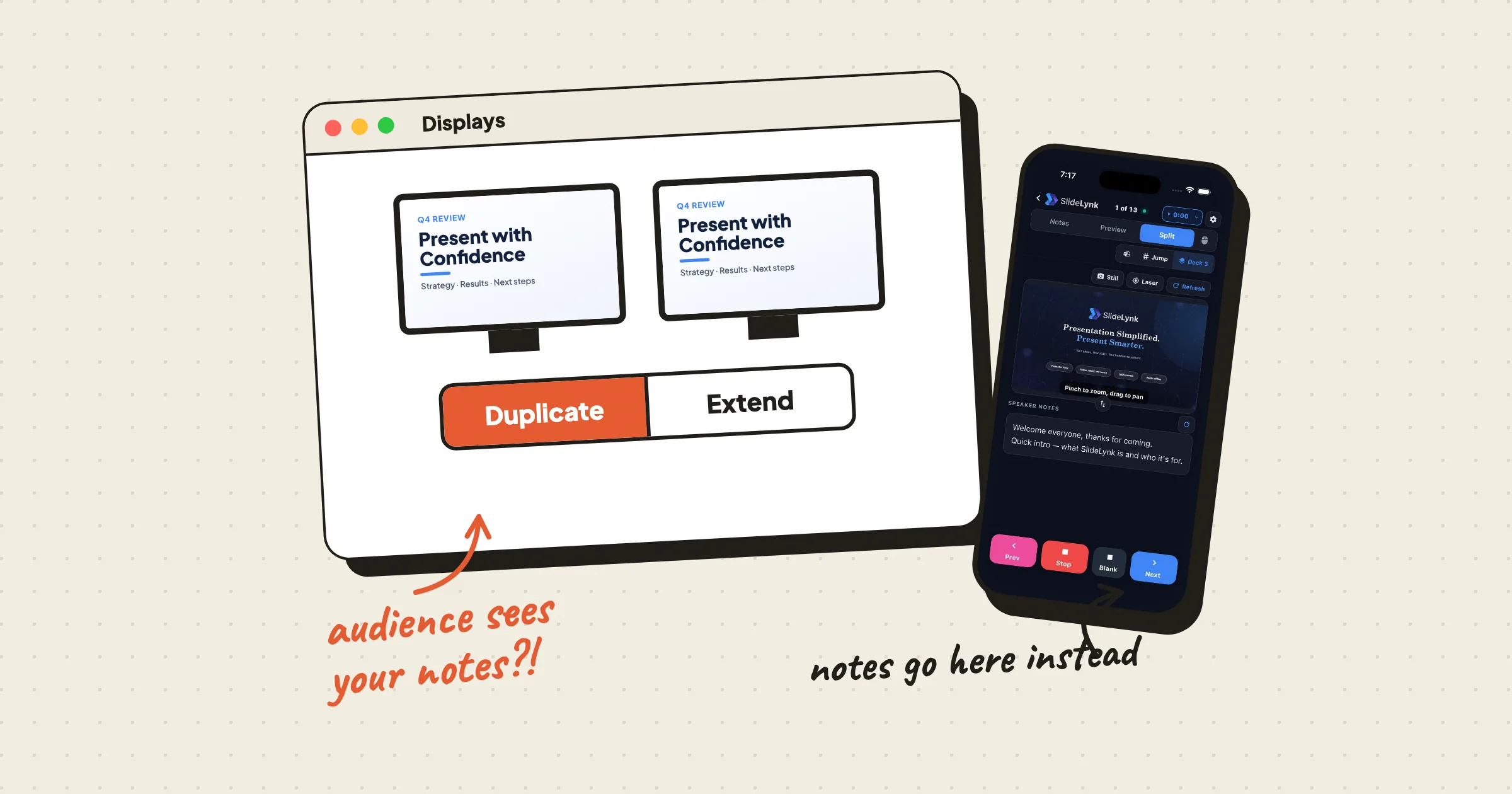
Can you use PowerPoint Presenter View with one monitor? You can open it, but only you or the audience can see that screen, not both. Presenter View needs two displays: one for your notes and one for the slides. With a single screen, or a projector that only mirrors your laptop, the audience either sees your notes or you lose them.
You have three real options:
- Get a second display working by switching from Duplicate to Extend (fixes below).
- Use the one-screen workarounds for rehearsals and video calls.
- Move your notes to your phone, so the room's display setup no longer matters.
This guide walks through all three, starting with the fixes people search for most.
Why Presenter View breaks in real rooms
Presenter View assumes you control the displays. Real rooms often don't let you:
- The venue only mirrors. Many HDMI switchers, lectern setups, and wireless casting boxes send a copy of your screen, not a second screen.
- The laptop is somewhere else. In a lot of churches and event halls, the presentation laptop sits in the sound booth at the back while you stand at the front. Its Presenter View is useless to you.
- It's a shared room PC. Classroom and conference PCs often lock display settings.
- You're on a call. Sharing your screen on Zoom or Teams with one monitor means sharing whatever is on it.
If any of these sound familiar, skip to option 3 below. If you do have two displays and Presenter View is misbehaving, start here.
Option 1: Fix Presenter View when you have two displays
Presenter View is showing on the projector instead of your laptop
This is the most common problem, and it takes a few seconds to fix.
- PowerPoint on Windows: In Presenter View, open Display Settings at the top and choose Swap Presenter View and Slide Show.
- PowerPoint on Mac: In Presenter View, click Swap Displays in the toolbar.
- Keynote on Mac: While the slideshow is playing, press X to swap the presenter display and the audience display. You can also move the pointer to the top of the presenter display and click the switch-displays button.
The audience can see your notes
Your computer is mirroring (duplicating) the displays. Switch to extended mode:
- Windows: Press Windows + P and choose Extend. Or go to Settings > System > Display and change "Duplicate these displays" to Extend these displays.
- Mac: Go to System Settings > Displays and turn off mirroring so the projector is used as a separate, extended display.
Then restart the slideshow. On Windows, PowerPoint usually switches to Extend by itself when a show starts, then puts your old setting back when it ends. If the room's hardware only mirrors, no setting on your laptop will fix it. Go to option 3.
"Use Presenter View" or the Monitor list is greyed out
PowerPoint only sees one display. Check the cable or adapter, wake up the projector, and confirm the second display appears in your system display settings. Once your computer detects it, the options on the Slide Show tab (in the Monitors group) become available again.
Presenter View isn't showing your notes or the next slide
- Notes are missing: The notes pane in Presenter View can be shrunk to nothing. Drag its border up, or use the text size buttons to make notes readable.
- You're looking at the wrong window: If only the slideshow appears, Presenter View may be on the other display. Use the swap option above.
- The slide has no notes: Check the slide in Normal view. The notes pane is under the slide (View > Notes if you can't see it).
Presenter View is not full screen (Mac)
The presenter window can end up as a regular window, not full screen, especially after you swap displays. Use the green full-screen button on the presenter window, or end the show and start it again once the displays are arranged.
Option 2: One-screen workarounds (and their limits)
Rehearsing alone
On a single monitor, you can open Presenter View just to practice. On Windows, press Alt + F5 to start from the beginning in Presenter View. This is fine for rehearsal, but don't do it in front of an audience on a mirrored screen, because they'll see everything you see.
On Zoom or Teams with one monitor
The common workaround is to run the slideshow in a window and share only that window:
- In PowerPoint, go to Slide Show > Set Up Slide Show and choose Browsed by an individual (window).
- Start the slideshow.
- In your meeting app, share the PowerPoint slideshow window, not your whole screen.
- Keep your notes in the main PowerPoint window beside it.
It works, but it's fiddly. Your notes compete for space with the meeting controls and participant video, and one wrong click on "Share screen" shows everything.
Printed notes
Zero setup, nothing to fail. They also don't stay in sync when you skip a slide or take a question, and you'll need a free hand to hold them.
Option 3: Put Presenter View on your phone
This is the option that ignores the room. Your slideshow runs normally on the projector, mirrored or not, and your phone shows what Presenter View would: your notes, the current slide, and the next slide. You also advance the slides from that same screen.
Because your notes never appear on a display the audience can see, it doesn't matter whether the venue mirrors, whether the laptop is in the sound booth, or whether you're sharing your screen on a call.
Set it up with SlideLynk
SlideLynk's Presenter View (Premium) works with PowerPoint and Keynote on Mac and Windows.
- Install both apps. SlideLynk on the computer running the presentation, and the SlideLynk app on your iPhone or Android phone. Presenter View needs version 2.0 or later on both.
- Connect. Scan the QR code shown on the computer. SlideLynk can also find the computer on your network automatically, or you can type its IP address. Venue Wi-Fi or a phone hotspot both work, and no internet connection is needed.
- Start the slideshow from your phone. Pick the open deck and start it. It plays on whatever display the audience is watching.
- Open Presenter View with the sparkle icon (or swipe left on the Controls screen) and choose a layout:
- Notes: your speaker notes, large and easy to read.
- Preview: the current slide and the next slide.
- Split: notes and the current slide together.
- Pick Live or Snapshot. Live shows a real-time view of exactly what the room sees, including animations. Snapshot shows still images and uses less battery. On a Mac, Live asks for Screen Recording permission the first time; notes and Snapshot don't need it.
SlideLynk reads your notes straight from the deck, not from PowerPoint's own Presenter View. That's why it works with a single screen, a mirrored projector, or a laptop at the back of the room.
From the same screen you can go next and previous, jump to any slide, black out the screen, point with a laser that only shows on the slideshow, use your phone as a trackpad, and keep an eye on a countdown timer.
Is it private?
Yes. Notes, slide previews, and laser and trackpad input travel only over your local network between your computer and your phone. None of it goes through a cloud server. That matters if your deck has numbers or plans you wouldn't email to a stranger.
Which option should you use?
| Your situation | Best option |
|---|---|
| Two displays, Presenter View on the wrong one | Swap displays (option 1) |
| Audience sees your notes | Switch to Extend (option 1) |
| Venue only mirrors, or the laptop is out of reach | Notes on your phone (option 3) |
| Zoom or Teams with one monitor | Windowed slideshow (option 2) or notes on your phone (option 3) |
| Practicing alone | Alt + F5 on one screen (option 2) |
FAQ
Can you use Presenter View with one monitor? You can open it on one monitor, but the audience will see it if that screen is shared or mirrored. To keep notes private with a single display, show them on a separate device such as your phone.
Why is my PowerPoint Presenter View showing on the projector? PowerPoint picked the wrong display. Use Display Settings > Swap Presenter View and Slide Show on Windows, or Swap Displays on Mac.
How do I present a PowerPoint with notes only visible to me? Set your displays to Extend rather than Duplicate and turn on Presenter View. If the room only mirrors your screen, put your notes on your phone with an app like SlideLynk.
Why is Presenter View greyed out? PowerPoint doesn't detect a second display. Reconnect the cable or adapter, and check that the projector appears in your computer's display settings.
Does this work with Keynote? Yes. Keynote has its own presenter display (press X to swap screens), and SlideLynk's phone Presenter View works with Keynote on Mac as well as PowerPoint.
Is SlideLynk's Presenter View free? Presenter View is part of SlideLynk Premium ($19.99/year). Basic slide control is free, and Pro and Premium both include a 14-day free trial.
The bottom line
Presenter View is great when you control two displays. Most rooms don't give you that. Fix the display settings when you can, and when you can't, keep your notes on the device that's already in your hand.
Download SlideLynk and try Presenter View on your phone before your next talk.